
·


AI PPT Maker Free: Turn Your Topic, Notes or Document Into a Presentation You Can Edit, Present and Export
You feed a free AI PPT maker a topic, a prompt, or a document, and slides come out the other end. From there you read the outline, fix whatever looks off in the draft, and export or share the result. The catch is that “free” rarely means unlimited. Many plans ration their AI credits, stamp a watermark across your slides, or won’t let you export to PowerPoint at all, so it pays to learn the limits before you sink an hour into a deck.
Key Takeaways
● “Free” can mean a plain free plan, a small stash of one-time credits, or an editor that only charges once you turn the AI on.
● Four things matter before you begin: credits, watermark, PPTX export, and whether you can edit the slides.
● Prompts work better when they spell out the topic, who’s listening, what the talk is for, and how many slides you need.
● The AI drafts in seconds, but whether the facts hold up is your problem.
● Don’t wait until presentation day to open the exported file. Test it early.
What Is an AI PPT Maker Free Tool?
Basically, it’s software that takes whatever you give it and turns it into a designed slide deck. “Free” only tells you that part of it won’t cost anything. If you’d like to see what else is out there, there’s a roundup of free AI tools for making presentations.
Simple explanation: think of an assistant who writes the rough draft while you supply the idea. They return with slide titles, bullet points, and a layout, and you tidy up anything that doesn’t sit right.
Technical explanation: behind the scenes, a large language model (a text-writing AI) reads your prompt and drafts an outline and the slide text. The tool then picks a theme and layout and, in most cases, drops in a few images. For the longer version, see how generative AI creates presentation content. A few tools can also export PPTX, which is the current PowerPoint file format.
Entity map: Generative AI writes the text → templates set the look → PPTX or Google Slides lets you edit → privacy terms decide how your data is handled.
How Does an AI PPT Maker Work?
Most tools run through roughly the same sequence: prompt → outline → slide structure → design → review → export. That’s a common pattern rather than a rule. Some tools plug straight into PowerPoint or Google Slides, and others keep you inside their own web editor.
How to Make a PPT With AI for Free (Step by Step)
If you’d rather not start from a blank prompt box, these AI prompts for creating PowerPoint presentations can be copied and adjusted.
Find a tool whose free tier covers what you need. The comparison table further down can help you decide.
Narrow the topic. “How solar power works for Grade 9” will always give you better slides than a bare “Energy.”
Work out who will be in the room and what you want them to take away.
Write the prompt. Here’s one to borrow: Create 8 slides on [topic] for [audience]. Give each slide a title, three short bullets, and a visual idea. Mark claims that need checking.
Go through the outline first, before the tool builds anything else. That habit can spare you some credits.
Rework the wording, the slide order, the fonts, and the pictures until it feels like yours.
Check each fact, figure, and source.
Export it as a PPTX, a PDF, or a shareable link.
Open the finished file and confirm that it behaves.
Questions Searchers Ask Most
Is it really free? For the most part, only up to a point. Gamma’s free plan includes 400 one-time credits that never refresh, allows up to 10 slides per prompt, and puts a Gamma badge on exports. Canva Free also gives you some AI uses, but how many depends on which tool you’re using.
Can I get a PPTX file? Frequently, yes. Gamma’s free plan lists PPTX, PDF, PNG, and Google Slides export, though you may have to straighten out some layouts afterward. Copilot in PowerPoint runs inside PowerPoint, which means the file you get is a normal PPTX.
Can it make slides from text or a PDF? Often it can. Gemini Canvas accepts prompts as well as uploaded files and exports to Google Slides. Using Gemini directly inside Google Slides requires an eligible plan.
Which is best for students? Whichever one lets you change things without a struggle. Canva and Gemini with Google Slides both do. And do check your school’s policy on AI before you hand anything in.
Real-World Example
Picture a Grade 9 teacher who has ten minutes to teach solar power. She pastes her notes into an AI tool and requests 8 slides. The draft that comes back has one weak slide and a number that’s wrong. She combines two slides, corrects the figure from her textbook, and exports the deck as a PDF. (Illustrative example, not a test result.)
Original Method: The 3-3-3 Check
● 3 prompt lines: audience, goal, slide count.
● 3 review passes: facts, flow, design.
3 export checks: watermark, editable text, file opens
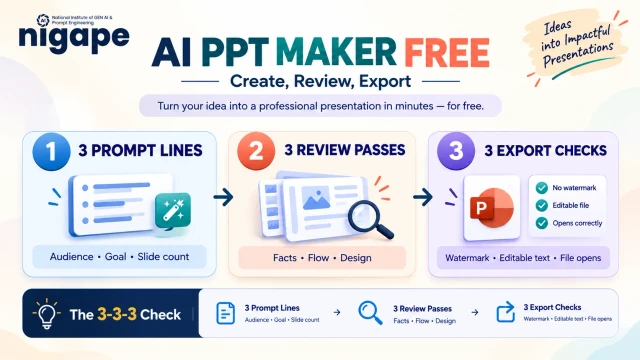
A beginner can follow this exactly as it’s written. More experienced users can add checks for brand and privacy on top.
Comparison Table: Free AI Presentation Makers
Tool | Free access | AI slides | PPTX export | Main limit |
Gamma | Free plan, 400 one-time credits | Yes | Yes, with Gamma badge | Credits don’t refresh; 10 slides per prompt |
Canva | Free plan, limited AI uses | Yes, limited | Check in your account | AI allowance varies by tool |
Gemini + Google Slides | Canvas export; Slides AI needs eligible plan | Yes | Via Slides download | Access varies by account |
Copilot in PowerPoint | Depends on Microsoft license | Yes | Native PPTX | Some features need a license |
Free Starter tier | Yes, limited | Paid plans only (vendor-stated) | Export locked on free |
Table checked October 10, 2026. If you just want a quick draft, Gamma does the job. Copilot is better when the end goal is an editable PowerPoint file, and Google Slides is easier when several people are editing together.
Tools and Skills
Tools: PowerPoint, Google Slides, an AI chatbot to help with outlines, and licensed images.
Skills: writing a clear prompt, keeping slide structure simple, visual hierarchy (the thing the eye lands on first), and fact-checking.
Benefits
● You reach a first draft much sooner.
● People without design training get real help.
● Trying it out costs nothing, so there’s no risk in testing.
Limitations
A free plan might cap your credits, add a watermark, or lock PPTX export. On top of that, the AI can slip in wrong facts, sources that don’t exist, and charts that don’t mean much. Even a good export sometimes needs a bit of tidying.
Best Practices
● Paste in your own source notes.
● Give every slide a single idea.
● Keep bullets short and fonts large.
● Go back over every number once more.
● Read the privacy policy before you upload something private.
Common Mistakes
Mistake | Better approach |
Vague prompt | Add audience, goal, slide count |
Trusting every claim | Verify facts |
Too much text | Short bullets |
Skipping the outline | Fix flow first |
Ignoring export limits | Test export early |
Uploading private files | Check terms first |
Related Entities
Microsoft PowerPoint, Google Slides, Gamma, Canva, Gemini, Copilot, PPTX, generative AI, AI credits.
Evidence and Sources
Gamma’s official pricing page shows its free credits, slide limits, and export formats. Plans change over time, so check it again before you sign up.
Google’s Google Slides help page explains which Gemini slide features are available on which accounts. It’s worth reading before you build a plan around Gemini.
FAQs
1. What is the best AI PPT maker free?
That comes down to what you’re after. Gamma works fast, Copilot gives you a native PPTX, and Canva is the most visual of the three. The table above lays them out together.
2. Can I make a PowerPoint with AI for free?
Yes, though with limits. Credits and export rules change from one tool to the next.
3. Can AI create slides from a PDF? .
Quite a few tools can. Gemini Canvas takes uploaded files. Before you upload, check the size limits and the privacy terms.
4. Can I download AI slides as PPTX?
Frequently, yes. Gamma’s free plan lists PPTX export. Export one test file before you rely on it.
5. Do free tools add watermarks?
Some of them do. Gamma places its badge on free exports.
6. Can I edit AI-made slides?
Yes, they’re editable. Exports from web-first tools sometimes need a little cleanup.
7. Can AI slides be wrong? Definitely.
AI can make up facts, numbers, and sources, so always verify.
8. Is it safe to upload documents?
Not automatically. Read the privacy policy first, and keep confidential files out.
9. Can ChatGPT or Claude make a PowerPoint?
They can write the slide text, and you paste it into PowerPoint. Some plans can build a file directly. Test yours before you count on it.
10. How do I remove a free-plan watermark?
Upgrade to a paid plan. Gamma’s Plus plan removes its badge.
Conclusion
A free AI PPT maker can save you real time, as long as you pick one with a bit of care. Before you start, settle four questions: what the free plan includes, how many credits you get, whether you can export and edit a PPTX file, and how the tool handles your data. Begin with a five-slide deck rather than a big one. Check every fact yourself, then export the file, open it, and test it before you stand up to present. Make that routine and you’ll end up with clean, usable slides, whether you’re new to this or experienced, and you won’t have to spend anything at the start.